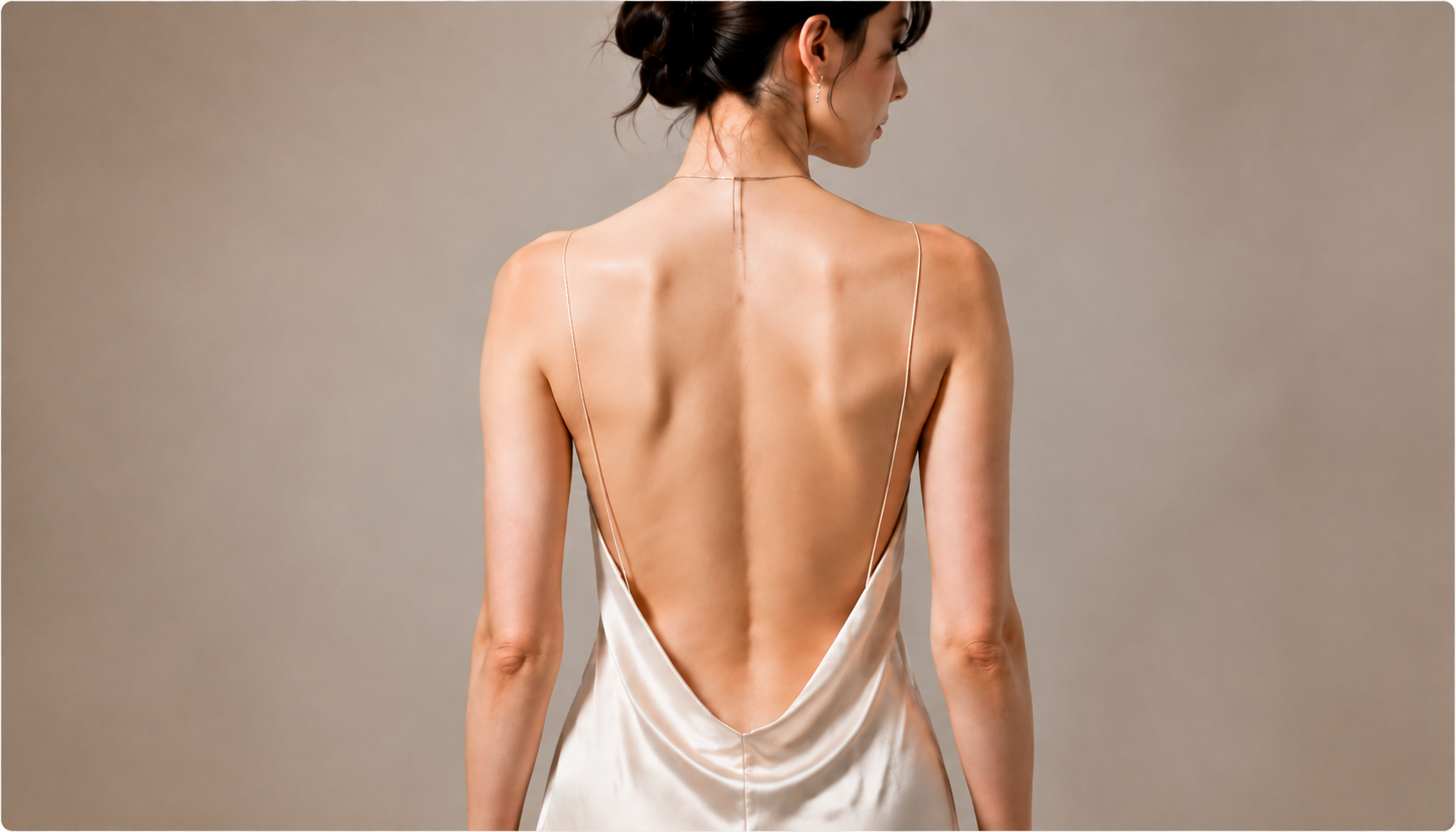
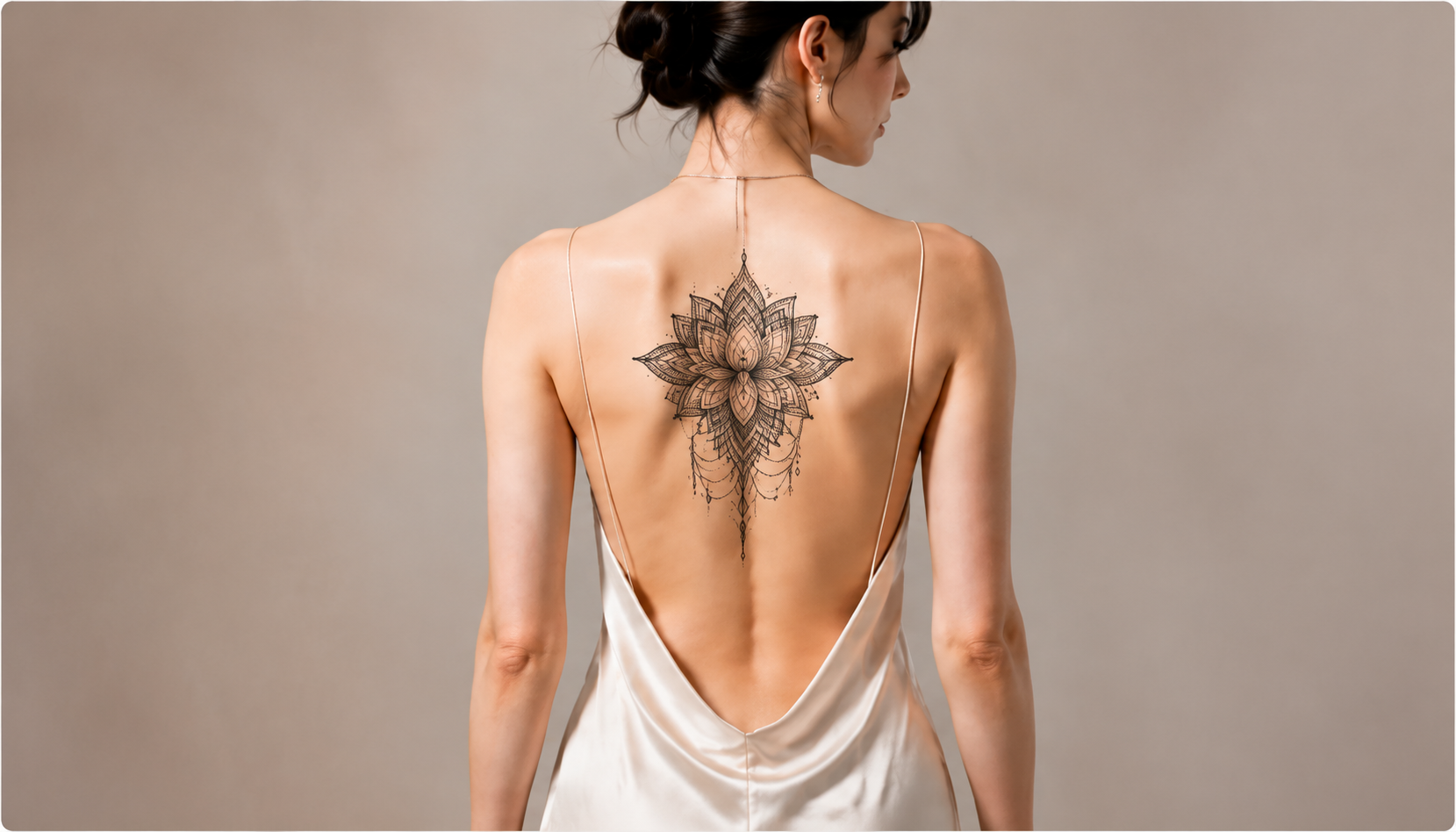
A mandala is centered on the back in this tattoo simulator reference example. The paired body photo makes the position and surrounding space easy to compare.
See where your design could sit before deciding on ink. Upload a body photo and artwork to the tattoo simulator, adjust the placement, and export a visual reference for your artist.
These reference examples from Tat Ink pair body photos with their corresponding tattoo placements. Compare the back and arm examples, then use the tattoo simulator above with your own images.
A mandala is centered on the back in this tattoo simulator reference example. The paired body photo makes the position and surrounding space easy to compare.

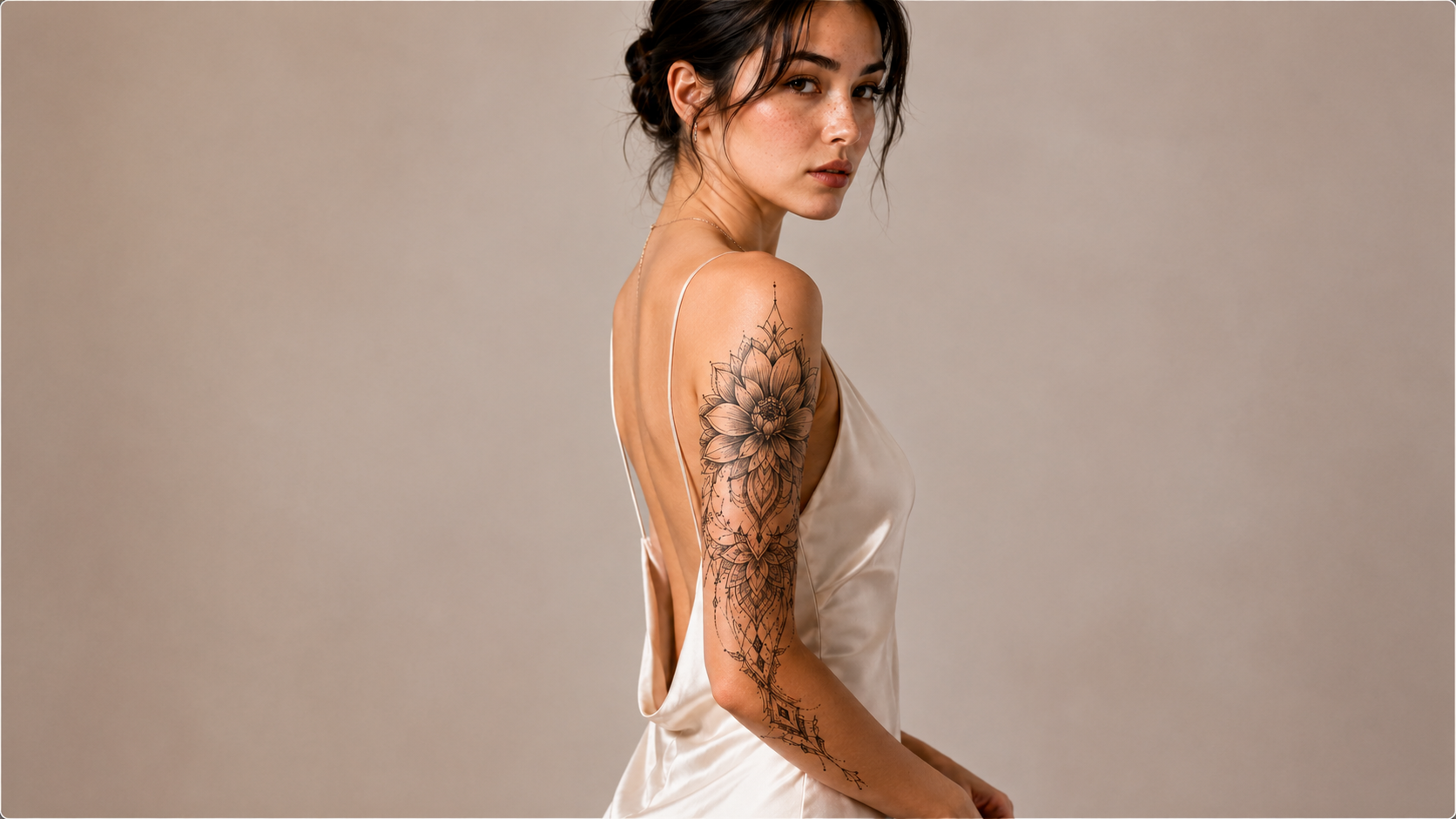
A floral mandala sleeve follows the upper arm in this tattoo simulator reference example. Compare the original photo and placement to see how scale changes the overall composition.
Upload a clear body photo and your artwork to the tattoo simulator. Choose images that make the intended placement and design easy to see.
Move, scale, rotate, and blend the design. Use the tattoo visualizer controls to compare direction and proportion, then reset if you want another starting point.
Save the current placement as a PNG. Keep the original artwork too, so your artist can discuss both the design details and the intended position.
Bring a body photo and a separate design to the tattoo simulator. This tattoo visualizer combines those two images, helping you judge a familiar shape on your own arm, leg, or chosen visible area.
Upload Your Two Images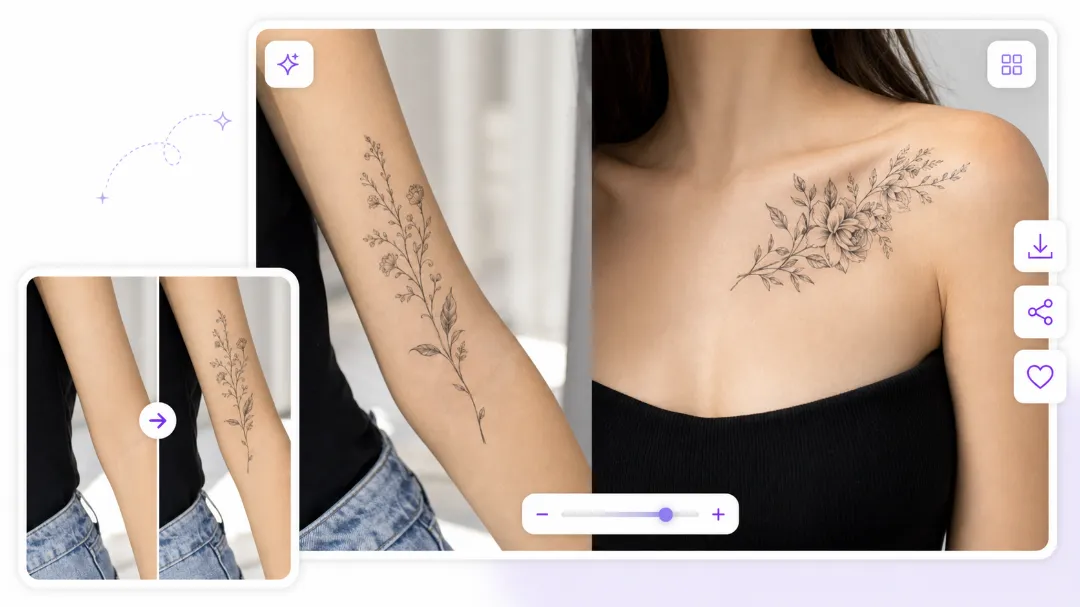
Drag the artwork across your photo in the tattoo simulator. The tattoo visualizer keeps the surrounding body image visible, so you can compare the design against your wrist, nearby ink, or other landmarks in that shot.
Try a Different Position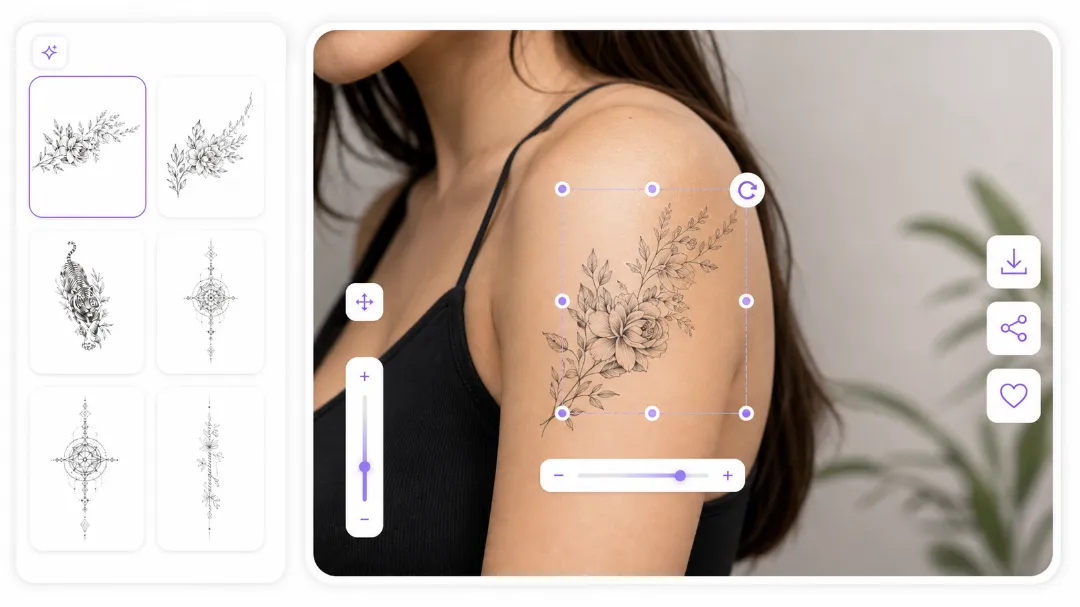
Use size and rotation controls in the tattoo simulator to explore proportion and direction. Your tattoo visualizer preview updates as you adjust, helping you compare a compact placement with a larger composition on the same photo.
Adjust Size and Angle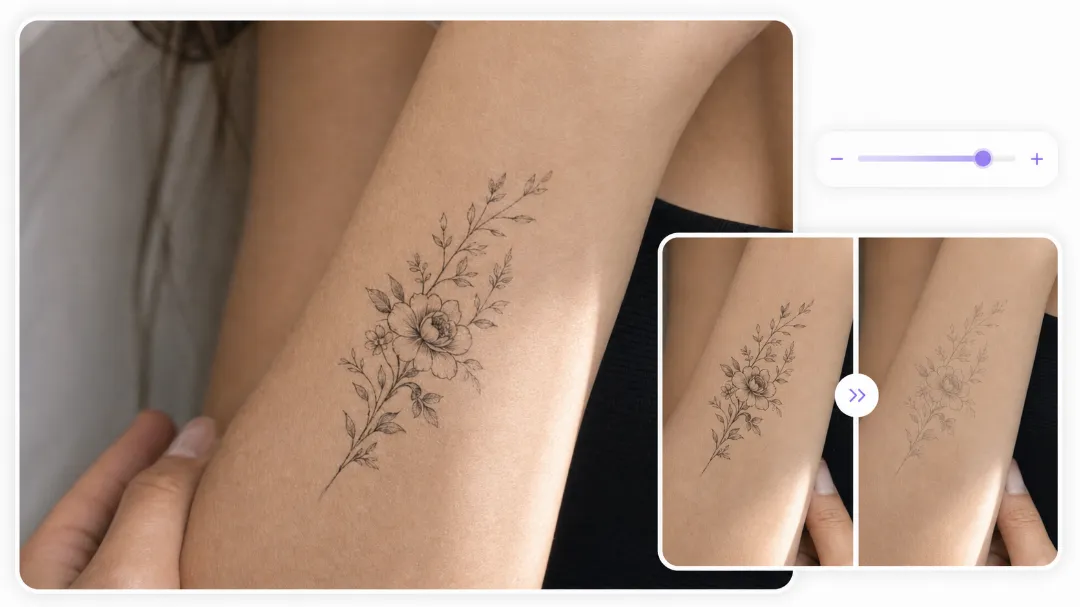
Change opacity in the tattoo simulator to soften or strengthen the artwork. This tattoo visualizer uses image blending so the photo remains visible through the design, making the overlay easier to assess than an opaque sticker.
Adjust the Ink Opacity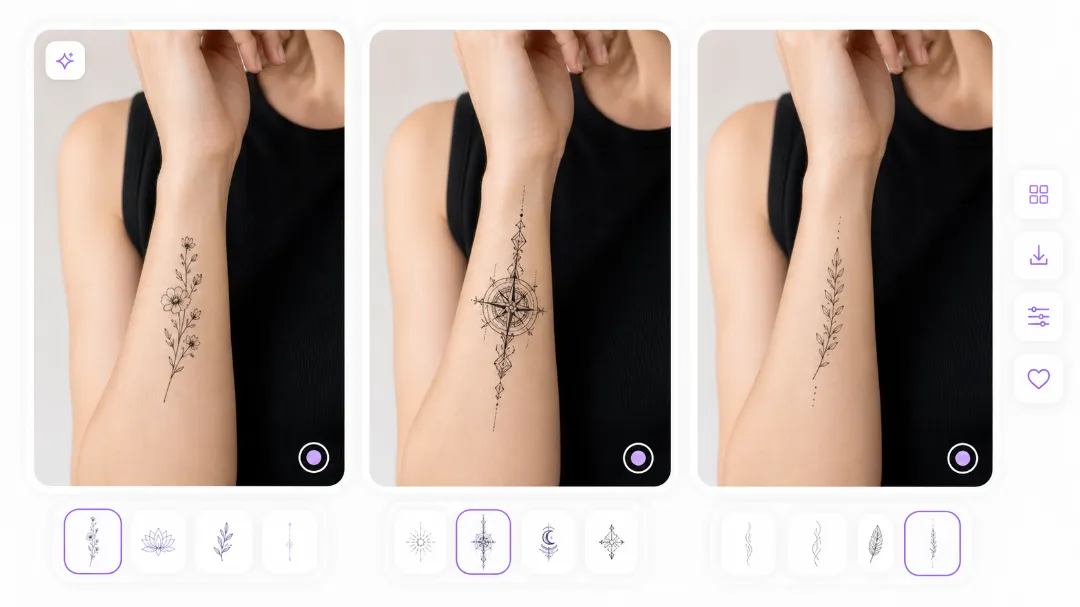
Flip the design when its direction needs to change, or reset the controls to return to a starting placement. The tattoo simulator gives you a way to compare orientation without preparing a second artwork file.
Try the Mirrored DesignDownload a PNG from the tattoo simulator once the position looks useful. The tattoo visualizer export combines your body photo and current artwork placement, giving your artist a single reference image rather than two disconnected files.
Export Your Placement PreviewExplore where your artwork sits in one familiar photo, then take a clearer placement reference to the artist who will refine it.
The tattoo simulator shows your chosen artwork beside the proportions and nearby details in your actual photo, making the placement easier to discuss.
A tattoo visualizer lets you explore how a design reads at several sizes while keeping the photo and artwork consistent for each comparison.
Moving, rotating, resizing, and blending in the tattoo simulator use your uploaded images directly, so these adjustments do not consume AI generation credits.
Export a reference that communicates placement and direction. Your artist can then refine the dimensions and design for the way your body actually moves.
Tattoo Cover Up Generator creates a concept for a selected area of an old tattoo photo. Use it when you need new artwork rather than placement of an existing design.
Bring a body photo and a separate tattoo design image. The tattoo simulator combines them for a placement preview you control. This tattoo visualizer uses existing artwork rather than generating a new design from a prompt.
Choose a clear photo with the intended area and surrounding body details visible. A straightforward angle makes placement easier. The tattoo visualizer shows that particular view; use a separate photo to compare another angle.
A transparent or clean background makes artwork easier to place. Avoid surrounding screenshot controls and keep the subject visible. The tattoo visualizer blends your file into the photo; it does not extract drawings from complicated scenes.
Opacity sets how strongly the artwork appears over your photo. Lower it for a lighter overlay or increase it for clarity. The tattoo visualizer blends the images, but cannot predict the appearance of healed ink.
No. The tattoo simulator places existing artwork locally in your browser. Movement, sizing, rotation, opacity, mirror, and export do not call an AI model. The separate cover concept tool uses generation credits for new artwork.
The tattoo simulator is a photo based tool with direct overlay controls. It does not create a rotating 3D body or wrap artwork around hidden contours. The preview represents the body view in your uploaded image.
Test an area visible in your photo, such as an arm, shoulder, or leg. This tattoo placement simulator lets you position artwork yourself. Check perspective carefully: one photo cannot show a design around an entire limb.
The tattoo visualizer restores your photo, design, and placement in the same browser. Wait for the draft to load before editing. Clearing browser data or switching devices can remove access to this locally stored draft.
Download a PNG of your body photo with the current artwork placement. The tattoo simulator export helps communicate your preferred position. Keep the original design as well; the preview is a reference, not a measured stencil.
The tattoo simulator overlays existing artwork without removing old ink from the photo. Use Tattoo Cover Up Generator for a newly generated cover concept. Your artist must still assess whether a proposed cover can work in practice.

Bring a body photo and artwork. Find a placement you can show and discuss before your appointment.
Open Tattoo Simulator